How to Combine Multiple Reference Images with AI
Combine multiple reference images with AI using a bottle, café and style study. Copy a full prompt and check subject details, layout and unwanted objects.
To combine multiple reference images with AI, give each image a job and say which parts should survive. One image can define the product, another the setting, and a third the painted finish. Uploading all three without those instructions leaves the model to choose which objects, colors and layouts to mix.
For this guide, the brief is a single teal bottle on a café table, drawn with gouache-like brushwork. The references and comparison pictures were made with an AI image tool. We also checked the website's current reference-input interface on 28 October 2026.
Write the finished picture before choosing references
The intended picture has one bottle at the center-right of an oak table. Daylight comes from a window on the left. The café supplies the surroundings, and a painted still life supplies the surface treatment. The tabletop should contain only the bottle.
That last requirement matters. A style reference can contain attractive objects you do not want in the final picture. Here, it contains a pear, a bowl and a book. They give us a concrete way to check whether style guidance has also imported unwanted content.
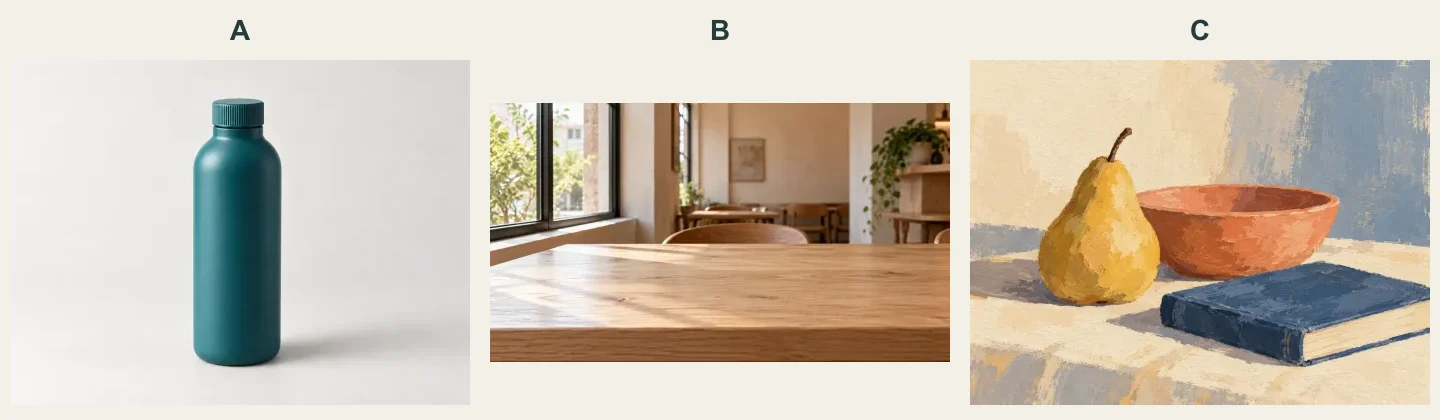
A supplies the bottle, B the café, and C the painted treatment. Reference board, 1440 × 420.
Open the full references if you want to inspect the details: image A, image B, and image C.
Assign a role to each image
| Reference | Keep | Leave behind |
|---|---|---|
| A, the studio bottle | Teal color, cylindrical body, rounded shoulders and short ridged cap | Studio background and original placement |
| B, the café | Oak table, left window, room perspective and light direction | The requirement to leave the whole table empty |
| C, the painted still life | Visible brushwork, paper texture and restrained color mood | Pear, bowl, book and their arrangement |
This is a writing aid. The website does not need dedicated “subject,” “background” and “style” switches for the text to describe those roles. Match A, B and C to the actual attachment order, and identify each picture by its content as well as its number. If the thumbnails appear in a different order, update the prompt before sending.
Make conflicts explicit. Image A has a photographic finish while C is painted. Our brief allows the finish to change but asks for the bottle's silhouette and teal color to remain recognizable. If you need exact product photography, that is a different brief from this illustration.
Compare an unspecified mix with an assigned-role brief
The short input below says nothing about which objects belong in the result.
Combine these three images into a beautiful café illustration. Landscape
16:9, no writing, no watermark.
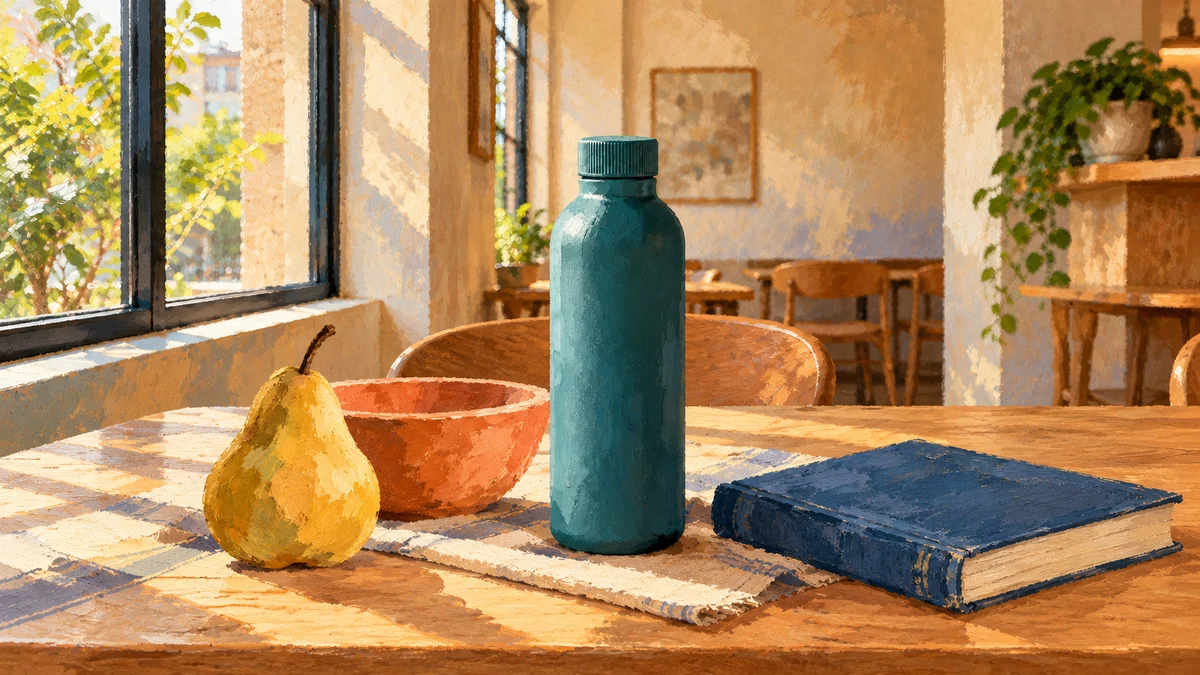
Unspecified roles, 1200 × 675. The pear, bowl and book have joined the bottle on the table.
Those objects are visible in the result. They are not a problem if you wanted a full still life, but they conflict with our one-bottle brief. The instruction did not tell the image tool to discard them.
The same division of roles can be written as follows. Keep each image number attached to its job.
Create one horizontal
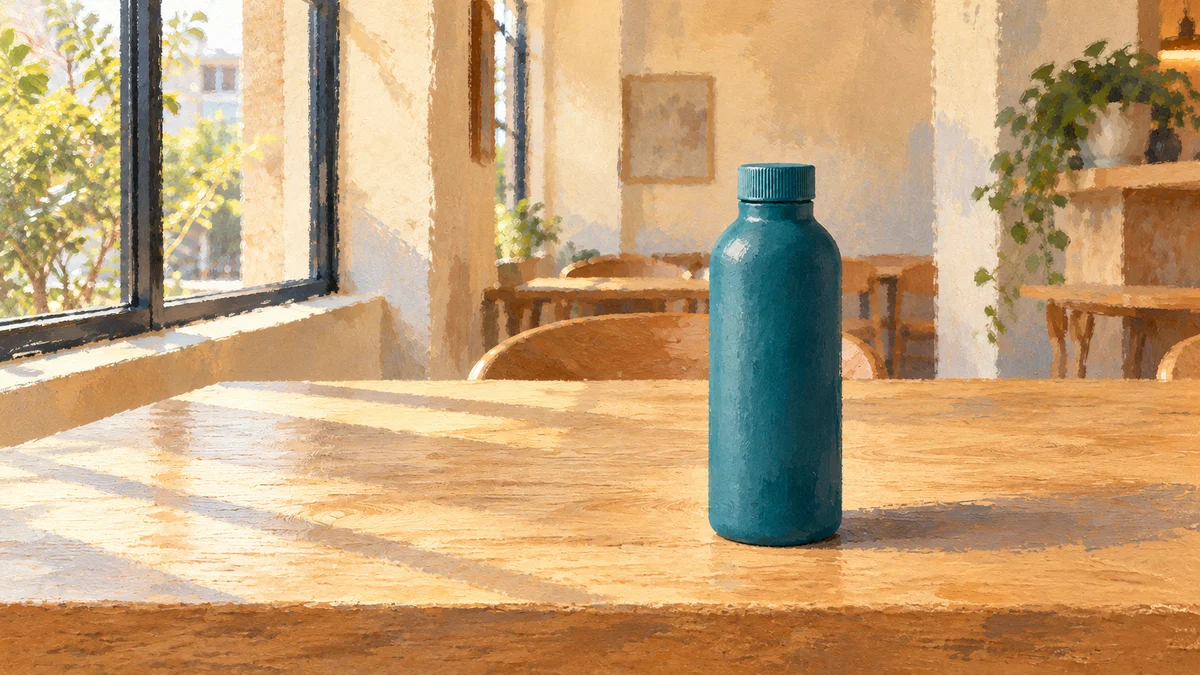
16:9editorial gouache illustration. Assign the input images separate roles. Image 1 supplies the subject. Reproduce its single deep teal cylindrical water bottle, rounded shoulders, short ridged teal screw cap, and original narrow width-to-height proportion. The bottle is the only tabletop object. Image 2 supplies the setting, perspective and light direction. Use its oak cafe tabletop, left window, warm pale wall, softly simplified wooden chairs, and distant right plant; place the bottle upright at the center-right of the table with a grounded shadow extending softly to the right. The bottle occupies approximately 45 percent of picture height and is fully visible. Image 3 supplies only the painterly medium, textured paper, dry brush marks, broad cream shadows and restrained muted color mood. Apply those gouache marks across the entire cafe and bottle while keeping the bottle teal. Exclude the pear, bowl, book, their outlines, and their arrangement from image 3. Preserve the bottle silhouette from image 1 and the left-window/right-plant layout from image 2. No pear, no bowl, no book, no extra bottle, no added label, no text, no logos, no watermark.

Assigned roles, 1200 × 675. The tabletop contains one bottle, the window stays on the left, and the painted texture covers the scene.
Check this version against the brief rather than treating it as an exact composite. The tabletop is clear and the main layout is recognizable. The bottle's surface and the room have been redrawn. For another attempt, compare those same cap, placement and tabletop requirements again.
Prepare the three inputs in the current image tool
Choose an image model that accepts image inputs before attaching the files. On 28 October, the live picker included Nano Banana 2 · Ext with text-or-image input. Imagen 4 was labeled text input, so it would not be a suitable choice for this three-reference workflow. Limits and available settings depend on the selected model.
For this brief, attach the bottle, café and painted still life in that order. Wait until all three thumbnails finish uploading. Keep the three role descriptions beside you while writing the prompt, and verify that “image 1” still refers to the bottle. Select a supported landscape ratio and check the updated maximum credits before rendering.
You can start with the bottle and café alone if the painted reference introduces too much content. Get the placement right first, then add the third image with its limited style role. That extra step is an option for diagnosing a conflict, not a guarantee that a sequence will preserve every detail.
Inspect the output one reference at a time
Begin with the bottle. Compare the shoulder curve, cap height and body proportions with A. A plausible bottle can still be the wrong bottle. Look for an extra handle, a changed cap or a second product.
Next, check B. The table should support the bottle at a believable scale. Look at the contact shadow, the tabletop angle and the left-hand window. A bottle that floats above the wood or is lit from the wrong side needs another revision.
Only then judge C's influence. In our brief, brushwork should extend across the product and the room. The pear and bowl should not return just because the painted treatment is stronger.
| Problem | One useful revision |
|---|---|
| Objects from C appear on the table | Name those objects and limit C to paint texture and color mood |
| The bottle becomes another container | Restate A's cap, shoulder and body shape; remove a competing product reference |
| The room layout drifts | Identify B's left window and table perspective; reduce unrelated background requests |
| Only the background looks painted | Request the same painted treatment across both the bottle and its setting |
| The product's exact color or lettering is essential | Use a suitable precision-editing workflow and verify the actual file rather than relying on reference similarity |
After each revision, compare the same features again. Asking to “make it better” gives you little basis for deciding whether the next picture fixed the problem.
Keep the brief small enough to judge
Three images are enough for this task because each has a separate contribution. Add another only when you can explain what it supplies and why the existing sources cannot provide it. Two conflicting product shapes make the subject harder to specify, even if the model accepts more files.
For a photographic background change, see creating lifestyle product photos from one photo. For a broader prompt structure, use the existing image-prompt guide.
Open the AI Image Generator and attach your references.
Sources and image notes
Checked on 28 October 2026. The three source images and both comparison pictures were generated with an AI image tool. The reference board arranges those source images and adds A, B and C labels. Reference guidance can redraw the scene; it does not provide editable layers, exact masks or unchanged pixels.