How to Create AI Lifestyle Product Photos from One Photo
Turn one product photo into two lifestyle scenes with reference-image prompts, background ideas and a practical product-detail checklist.
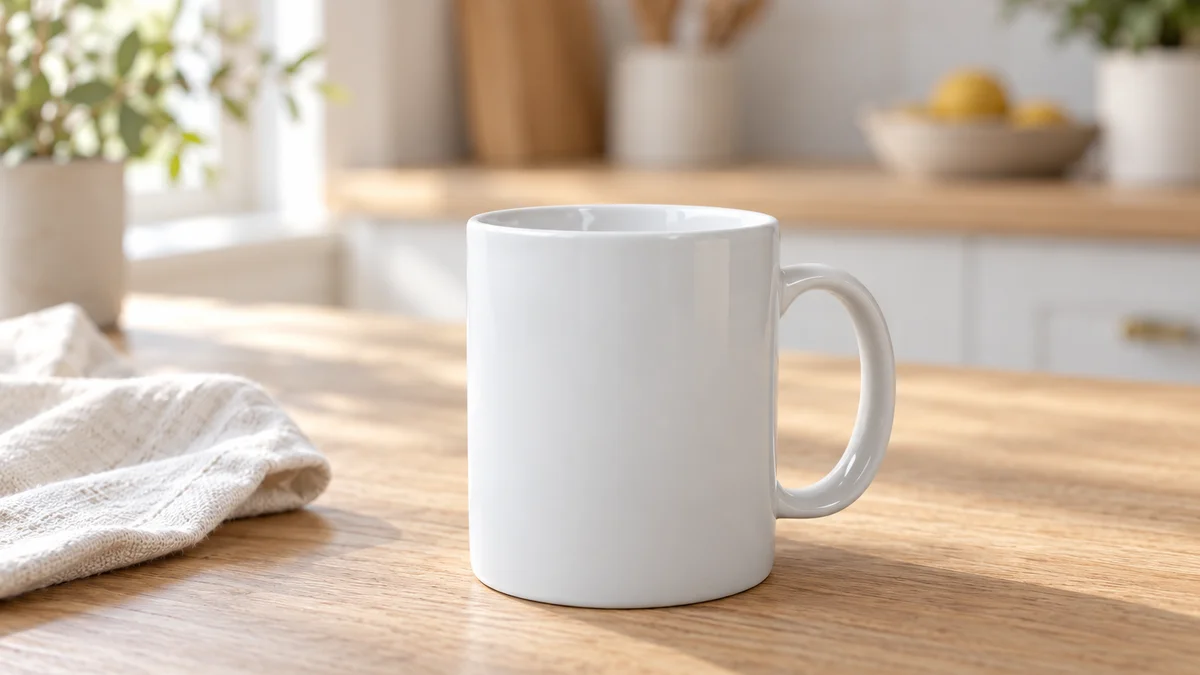
Start with a photograph of the product you actually need to show. Attach it to an image model that accepts references, describe a believable setting, then compare the result with the source before using it. A kitchen counter and a work desk can give the same mug two useful contexts. The handle, rim and proportions still need to belong to that mug.
We checked the current image creation workspace against product-image guidance from Shopify and Adobe while preparing this guide. The reference is a licensed photograph by KATRIN BOLOVTSOVA. The scene illustrations are editorial AI edits made outside the workspace, and the shorter prompts below are starting points for your own attempts.
Choose a product photo you can check against
Use an image with the whole product visible, including its base, edges and any parts that identify it. A straightforward view is easier to compare than a dramatic angle that hides half the object. Keep the original file available while reviewing every generated version.
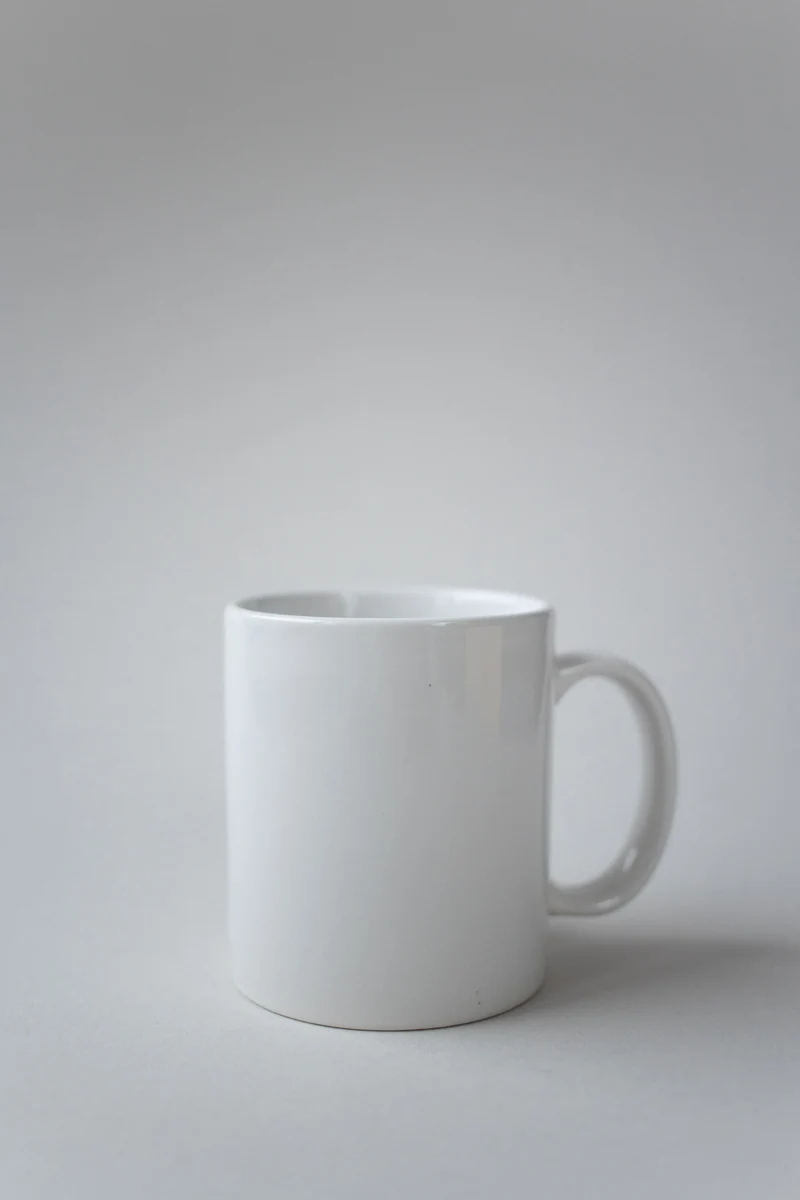
Reference photograph by KATRIN BOLOVTSOVA, used under the Pexels License. The surrounding space is simple, and the whole mug is visible.
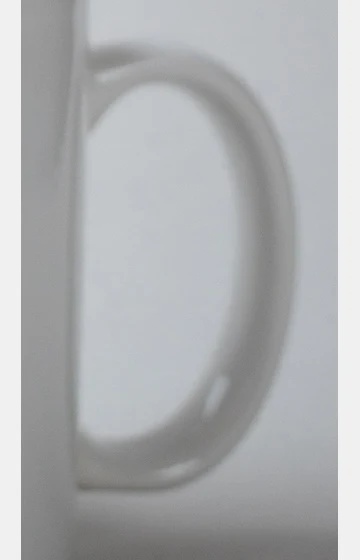
This mug has a plain cylindrical body, a visible empty interior and a handle on the right. Each is a detail to inspect. The original handle is softly focused, so an additional sharp detail photograph would make approval easier for a real listing.
Before uploading your own product photo, check for these common obstacles.
- A cropped handle, lid or cable leaves the model without a complete reference for that part.
- Strong glare can hide printing or make a matte finish look glossy.
- A hand covering an edge makes it harder to judge the actual outline.
- Multiple products in one frame can make it unclear which object you want to preserve.
Use a photo you own or have permission to edit. A supplier image needs appropriate permission too. For this demonstration, the source and its license are linked at the end.
Set up a reference-image request in the workspace
Open the AI image generator and sign in to attach your photo. The current composer has an Add from local files control. Choose an available model that supports image input, attach the source photograph and wait for the upload to finish.
Some catalog entries accept text only. A text-only request can explore a product concept, but it has no attached product photograph to guide an edit. For this task, check image-input support in the model picker rather than choosing on the name alone.
Choose a supported output ratio for where the image will appear. A square image might suit a product grid, while a taller composition leaves room for a social layout. Keep the whole product inside the intended crop. The model's available ratios and resolutions can differ from those of another model.
Read the displayed credit upper limit after choosing settings and attaching the reference. It can change with the request. The generation credit guide explains reservations and final settlement.
Write AI product scene prompts that name the setting
Give the environment a job. For a mug, a breakfast table suggests a morning routine; a notebook beside it suggests a work break. Choose one use context and a small number of separate props, then describe the light and the product details to preserve.
Avoid leaving the setting at “make it premium.” A surface, a light direction and an object placement give you things you can actually check. If you want a broader introduction to prompt structure, the image prompt guide covers that foundation.
Scene one puts the mug on a breakfast table
This version uses pale wood, a linen napkin and daylight from the left. The napkin sits beside the mug so it cannot hide the lower edge or handle.
Use the attached photo as the product reference. Place the same single white ceramic mug on a pale oak breakfast table beside an off-white linen napkin. Keep the mug empty, with its handle on the right and its complete rim and base visible. Use soft daylight from the left, a natural contact shadow and a softly blurred kitchen background. Preserve the cylindrical body, handle opening and glossy white finish. Add no lettering or logo. Keep props separate from the product.
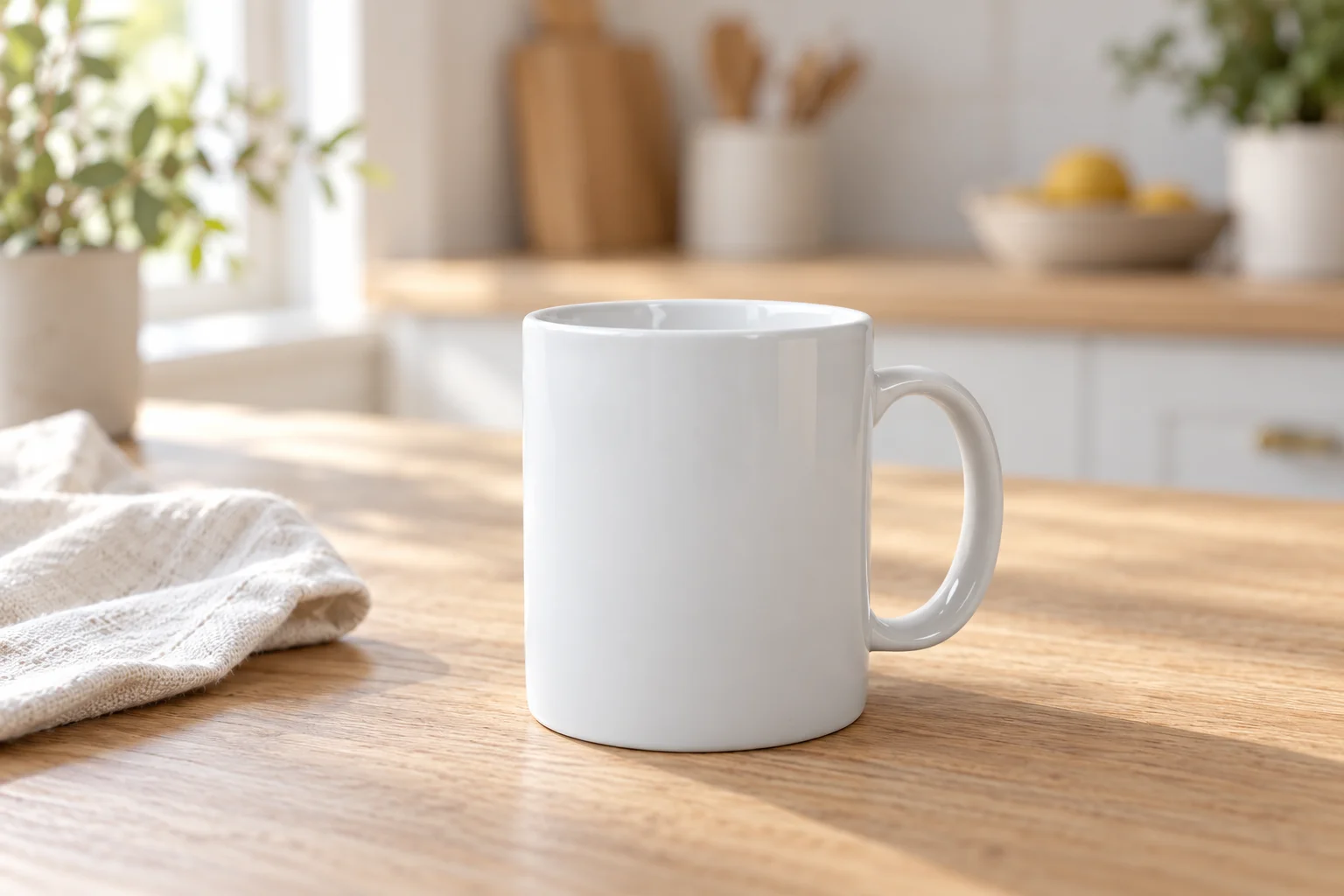
Editorial scene illustration. The mug remains visible against the wood, while the napkin and kitchen provide a breakfast setting.
The light should make the base feel supported by the table. Look for a shadow that meets the product, and check that the wood pattern does not continue through its edge. A convincing kitchen background cannot compensate for a floating mug.
Scene two moves the setting to a work desk
For the second direction, keep the source photograph and change the environment. A blue-gray desk and a closed notebook give a different context without asking the model to invent a new product angle.
Use the attached photo as the product reference. Place the same single white ceramic mug on a matte blue-gray work desk. Put a closed dark blue notebook and one pen to the left, separate from the mug. Keep the mug empty, the handle on the right and the original viewing angle. Show the full rim and base. Use soft daylight from the left and a plain, blurred background. Preserve the glossy white finish and product proportions. Add no text or logo.
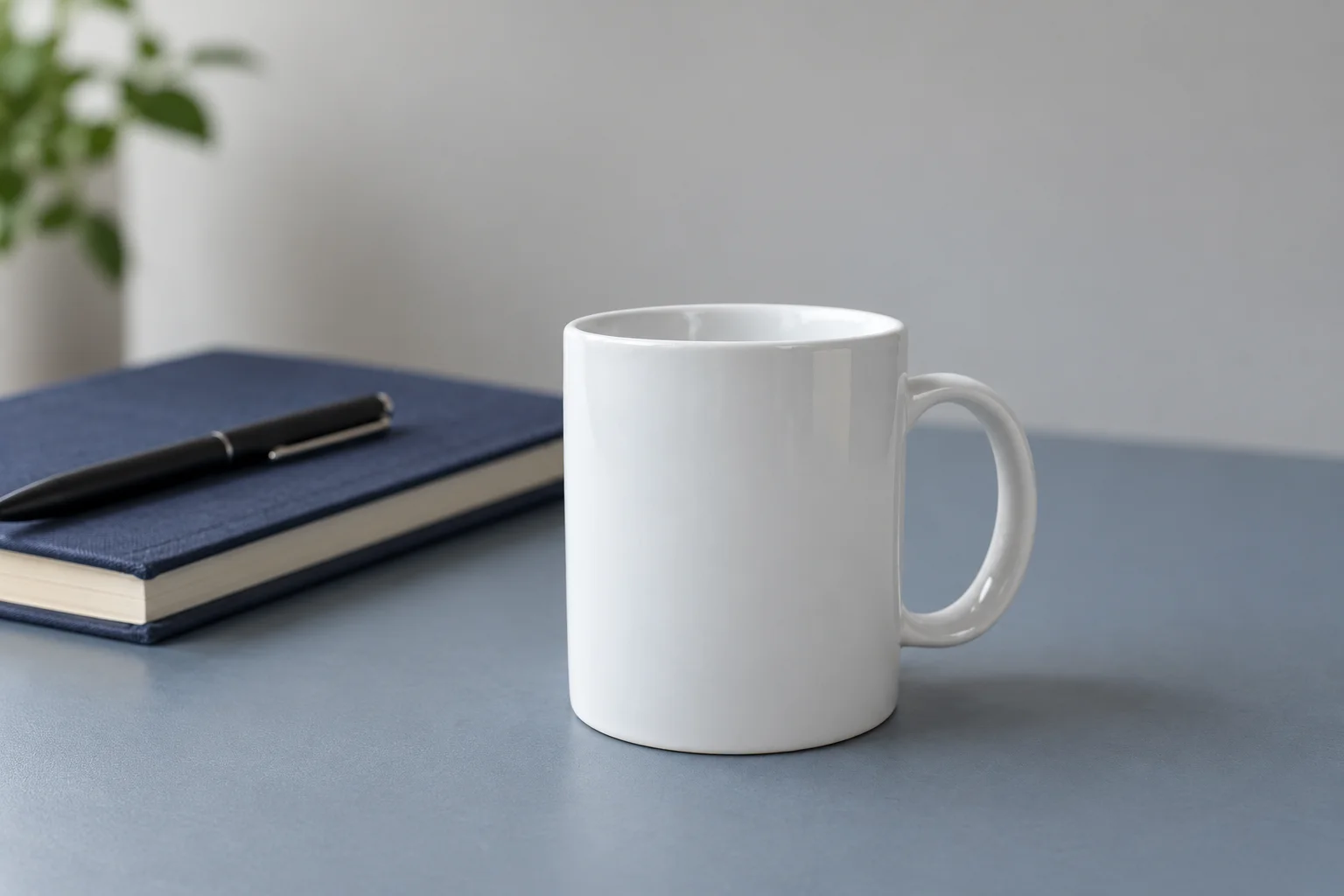
Editorial desk illustration. The notebook changes the use context while leaving the product's outline available for inspection.
Both briefs keep the mug empty. Adding coffee and steam would also require checking the liquid level and effects around the rim. The edits introduce background details too, including plants and a fruit bowl in the kitchen scene. Those objects were absent from the source. Check that invented props cannot be mistaken for items supplied with your product.
Inspect product details before choosing the prettier background
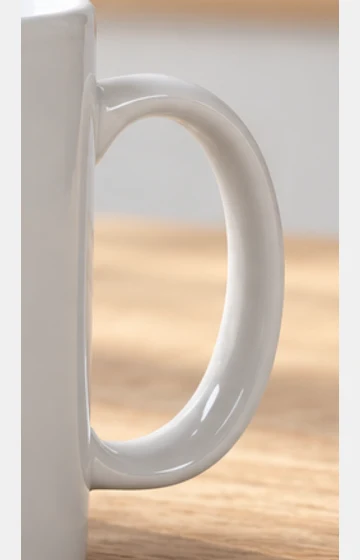
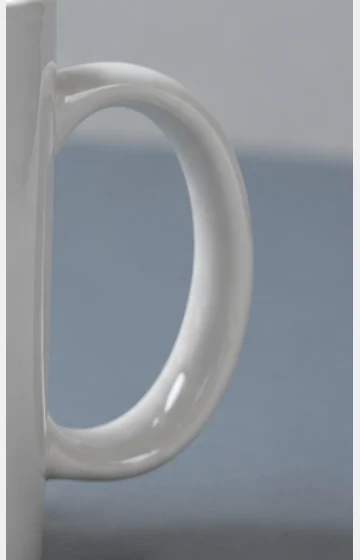
View the source and output side by side, then inspect the areas that carry product information. With this mug, that means the handle opening, its attachment points, the rim and the lower edge. Packaging would also need a separate check of every visible word and symbol.
Reference
Kitchen
Desk
Handle crops, resized for visual comparison. The source is softer, and the generated contours and highlights differ. These crops do not establish dimensional accuracy.
The examples keep the broad identity of a plain white mug, but that alone does not establish an exact product match. The upper handle joint and reflected highlights have been rendered differently. For your own stock, compare the result with the physical item and sharper detail photographs before approving it.
Use this checklist for AI lifestyle product photos.
- Outline and proportions. Check body width, height, openings, corners and attachment points. Reject a changed lid, handle or connector even if the scene looks good.
- Material and color. Compare texture, transparency and finish. Warm light can alter appearance; a new texture or coating would change what the image says about the product.
- Count and contents. Confirm the number of items. Props should not look like included accessories, and an empty product should not gain invented contents.
- Labels and markings. Read the text against the original artwork. Check logo shapes, capacities, size markings and warning symbols individually.
- Contact and crop. Look for a believable contact shadow, intact edges and enough room to survive the final crop.
Revise the problem you can name
If the product is acceptable but a prop overlaps it, ask for that correction in the same conversation. For the desk scene, a useful follow-up would be “Move the notebook farther left. Keep the mug position, viewing angle and lighting.” Review the next result against the original again.
If the handle changes shape, bring the original reference back into the request and identify the mismatch. “Keep the handle opening and attachment points from the reference” is a more specific revision to evaluate than “make the product accurate.” A new request can still change other details, so another review is necessary.
When repeated generations alter essential product geometry or exact packaging text, use a workflow that retains the approved product photograph and composites it into a background with an external image editor. Account for any hand editing in the final image. The workspace does not promise that a reference edit will preserve every product pixel.
Choose product photo background ideas by use
A setting should help someone understand where the product belongs. A plain tabletop can communicate everyday use. A desk can place it near a work routine. An elaborate holiday scene may attract attention while giving you more props, reflections and occlusion to check.
For a real product page, retain factual product photographs alongside any generated lifestyle material, and check the rules of the channel where you will publish. A generated scene cannot verify capacity, included accessories or a feature absent from the reference.
Start your first attempt in the image workspace with one clear reference and one of the two scene briefs. Before making another version, identify the specific product detail or environmental change that still needs work.
Sources and image credits
- Shopify guidance on media generation, reviewed on October 26, 2026. Its editor features belong to Shopify.
- Adobe product-shot workflow overview, reviewed on October 26, 2026. Its controls are separate from this workspace.
- Original mug photograph by KATRIN BOLOVTSOVA, used and modified under the Pexels License. The source image is a demonstration reference, and the photographer is credited for the original photograph.
- Kitchen and desk scenes are AI-edited editorial illustrations derived from that reference. Crops and web compression were applied for this article. No product-performance or model-comparison test is claimed.