AI Video Camera Movement Prompts with Shot Comparisons
Write AI video camera movement prompts for dolly, pan and truck shots. Use four café framing plans, copyable prompts and checks for unintended subject motion.
For useful AI video camera movement prompts, name the camera's path, direction and pace, then describe the framing you want at the end. Give the subject its own instruction. A bottle that stays on a table needs a different sentence from a person walking through the frame.
This guide uses one café scene to plan four shots. We checked the current video controls on 28 October 2026 and consulted Runway's camera reference. The illustrations show planned framing, created with an AI image tool. They are not frames from generated video clips.
Decide whether the subject or the camera moves
In the scene below, a teal bottle stands on an oak table. A red notebook lies near the camera on the left. A plant sits much farther away, on the right. Those three positions give you something to check besides whether the bottle looks bigger.
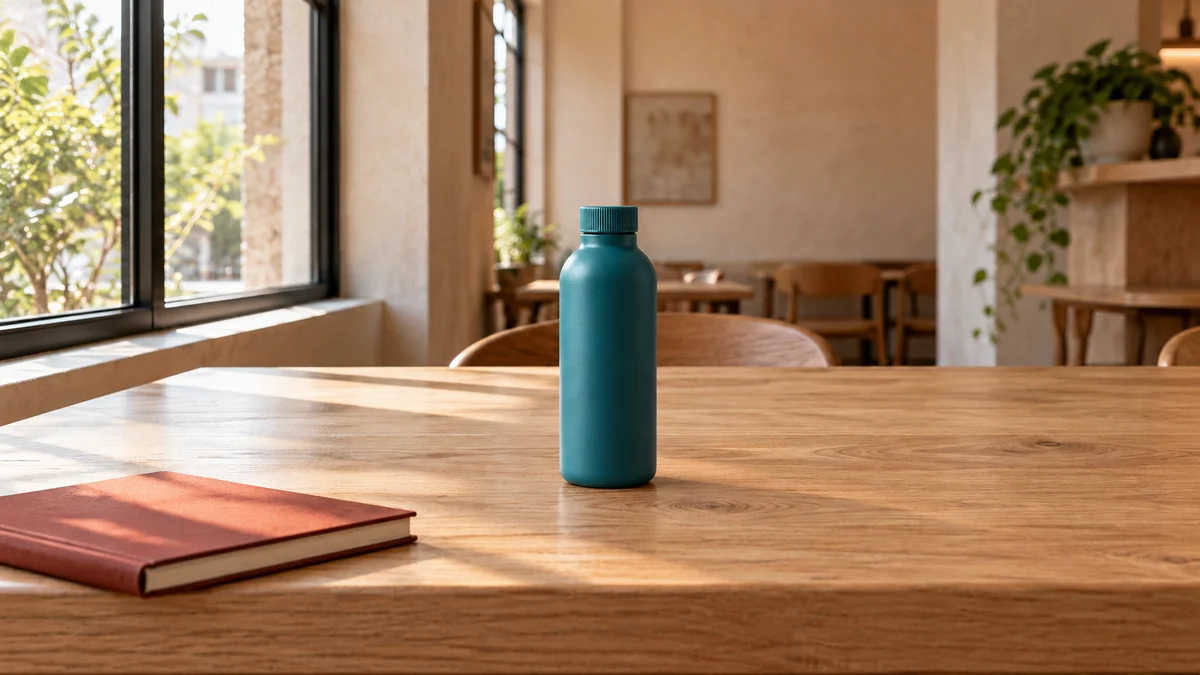
Shared scene, 1200 × 675. The bottle, notebook and plant stay in place while the planned camera position changes.
Write the subject instruction first. For this scene, use “The bottle remains upright and motionless on the table.” Then add a camera movement. Without that separation, “move right” leaves the moving object unspecified.
A tracking shot adds another relationship. If a person walks right, ask the camera to travel alongside at the same pace and keep the person in a chosen part of the frame. Following a moving subject and sliding past a stationary product are different briefs, even when both use sideways camera travel. Adobe's tracking-shot guide describes this subject-following purpose.
Compare four camera movements in the same scene
| Camera instruction | Planned visual change | What to inspect |
|---|---|---|
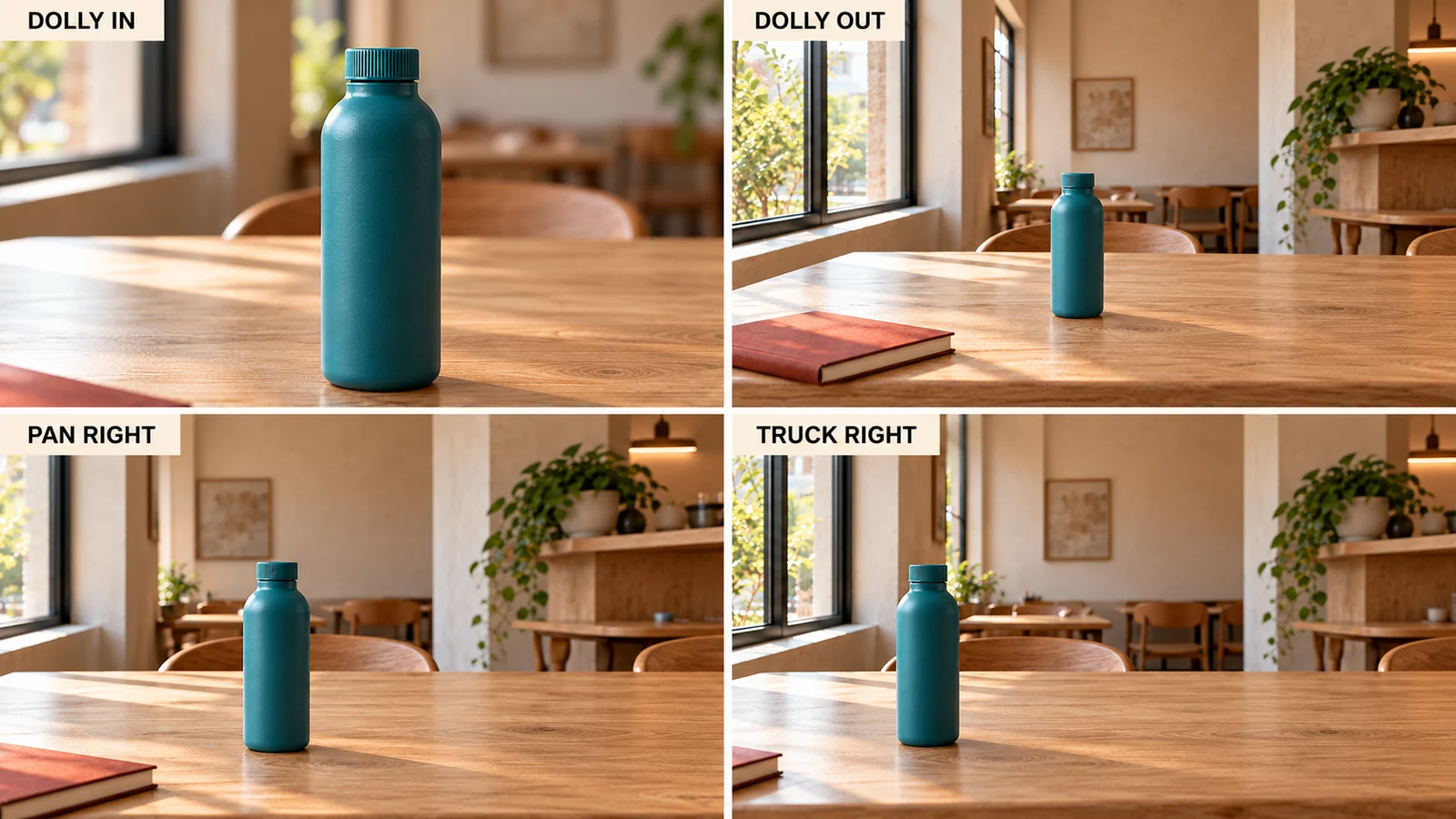
| Dolly in, or push in | The camera approaches the bottle | The bottle grows in frame and the perspective changes |
| Dolly out, or pull back | The camera retreats | The bottle becomes smaller as more of the café is revealed |
| Pan right | The camera pivots right from one position | The bottle moves toward the left of the picture as the right side is revealed |
| Truck right | The camera travels sideways to the right | Near and distant objects change their alignment |

Four planned end framings, 1600 × 900. Both lower panels put the bottle farther left. Watch the motion between frames to distinguish a pivot from sideways travel.
A larger bottle alone cannot prove a dolly move. A digital enlargement can also make it larger. Look for a believable change in perspective and in the relationship between the bottle, tabletop and background. A single end image cannot establish the camera path.
For pan and truck shots, the notebook is particularly useful. With sideways translation, a nearby object changes its screen position more strongly than a distant object. This relative shift is parallax. Judge the movement over time, rather than accepting any leftward slide as the requested shot.
Four camera prompts you can adapt
These prompts keep the subject still and request one continuous five-second movement. Use them with the shared scene as an image input, or replace the opening context with your own scene when working from text. The wording describes an intention; each model still needs its result checked.
Slow dolly in
One continuous five-second shot. The bottle remains upright and motionless on the table. The camera slowly dollies straight forward toward the bottle at a steady pace, keeping it centered. End in a closer view with the entire cap and base still visible. Keep the camera level and the window light steady.
Check the cap and base before accepting the result. A push that crops the product may be unsuitable even when the forward movement is clear.
Slow dolly out
One continuous five-second shot. The bottle and notebook remain still. The camera slowly dollies straight backward, keeping the bottle centered as more of the tabletop and café enter the frame. Finish in a wider view with the bottle fully visible. Keep the camera level and the daylight unchanged.
The newly revealed surroundings matter here. If the room stretches or new chairs appear halfway through the movement, the wider framing has introduced a continuity problem.
Pan right
One continuous five-second shot. The bottle, notebook and plant remain still. From a fixed camera position, slowly pan right at a steady pace. Let the bottle move toward the left side of the frame while revealing more of the right-hand café. Keep the lens height and magnification steady.
“Right” describes the camera's turn. A stationary bottle normally drifts left on screen during that turn. Asking both the camera and the bottle to move right would describe another shot.
Truck right
One continuous five-second shot. The bottle, notebook and plant remain fixed in the scene. The camera slowly trucks right along a straight sideways path, keeping its forward-facing direction and height steady. Let the bottle shift left in frame and show the nearby notebook changing alignment against the distant plant.
For a moving-person tracking shot, replace the still-subject sentence with the person's action and specify whether the camera keeps pace. Do not add that action to the stationary-bottle brief.
Fix an instruction that asks for competing movements
Consider this request before spending credits on it.
Make the bottle move right, hold the camera still, push in dramatically, orbit around the product and finish wide.
It contains a still camera, forward travel and an orbit. The subject is moving too, and the ending asks for a wider view. Split that into separate shots if all those actions are needed. For one product reveal, a simpler replacement is more useful.
The bottle stays motionless. The camera slowly dollies backward for five seconds, keeping the bottle centered and revealing more of the café. End in a stable wide view.
Runway's image-to-video guidance recommends beginning with simple motion and adding detail as needed. You can apply that restraint without copying its model-specific settings.
Check the first, middle and final moments
Play the whole clip once, then inspect the beginning, midpoint and end. For a five-second clip, the midpoint is around 2.5 seconds. Use those positions to locate an error, then replay the surrounding motion.
| What you see | What to check next |
|---|---|
| The bottle slides across the table while the room stays fixed | Restate that the subject stays still and name the camera as the moving element |
| Everything enlarges together during a requested dolly | Check perspective; a scale change alone is insufficient evidence |
| Pan and truck look interchangeable | Compare the near notebook with the distant plant throughout the move |
| The shot suddenly changes direction or cuts | Remove the extra action and request one continuous movement |
| The bottle changes shape | Reduce the move or simplify the input scene, then review the next result |
Change one instruction at a time. Keep the input image, model, duration, aspect ratio and other selected settings the same when comparing revisions. If a setting is unavailable after a model change, record the change instead of treating the two attempts as a controlled comparison.
Apply the plan in AI Media Generator
On 28 October, the live MiniMax H3 controls offered a five-second clip at 2K in 16:9. Choose the settings your selected model actually exposes, attach the scene where image input is supported, and enter one of the motion briefs above. Check the displayed maximum credits after changing the input or settings.
If you are still deciding whether to start from a picture, read text to video versus image to video. For the upload and generation sequence, use the existing image-to-video guide.
Open the AI Video Generator with your shot brief.
Sources
- Runway camera terminology and examples
- Runway image-to-video prompting guidance
- Adobe's explanation of tracking shots
Sources and live product controls checked on 28 October 2026.