How to Recolor One Object in a Photo with AI
Change one object’s color in a photo with AI using clear prompts, two mug color variations, and close-up checks for texture, edges and unwanted changes.
To change an object's color in a photo with AI, attach the image, identify the object by its position and current color, then specify the surface to recolor. Say which parts should keep their appearance. After generation, compare both the object and its surroundings with the source. A convincing new color is only part of the check.
For this guide, we used the desk image from our lifestyle product photo guide and generated two color variations from that same source. We also checked the current reference-image controls in the image workspace. The mug gives us a clear target, while the notebook and pen provide nearby details to compare.
Identify the object and the surface you want to change
“Make it blue” leaves two decisions unresolved. Which object should change, and how much of it should be colored? With this picture, use “the single white ceramic mug in the center-right foreground.” Then name the exterior glaze and handle as the target, keeping the interior and thin top rim white.
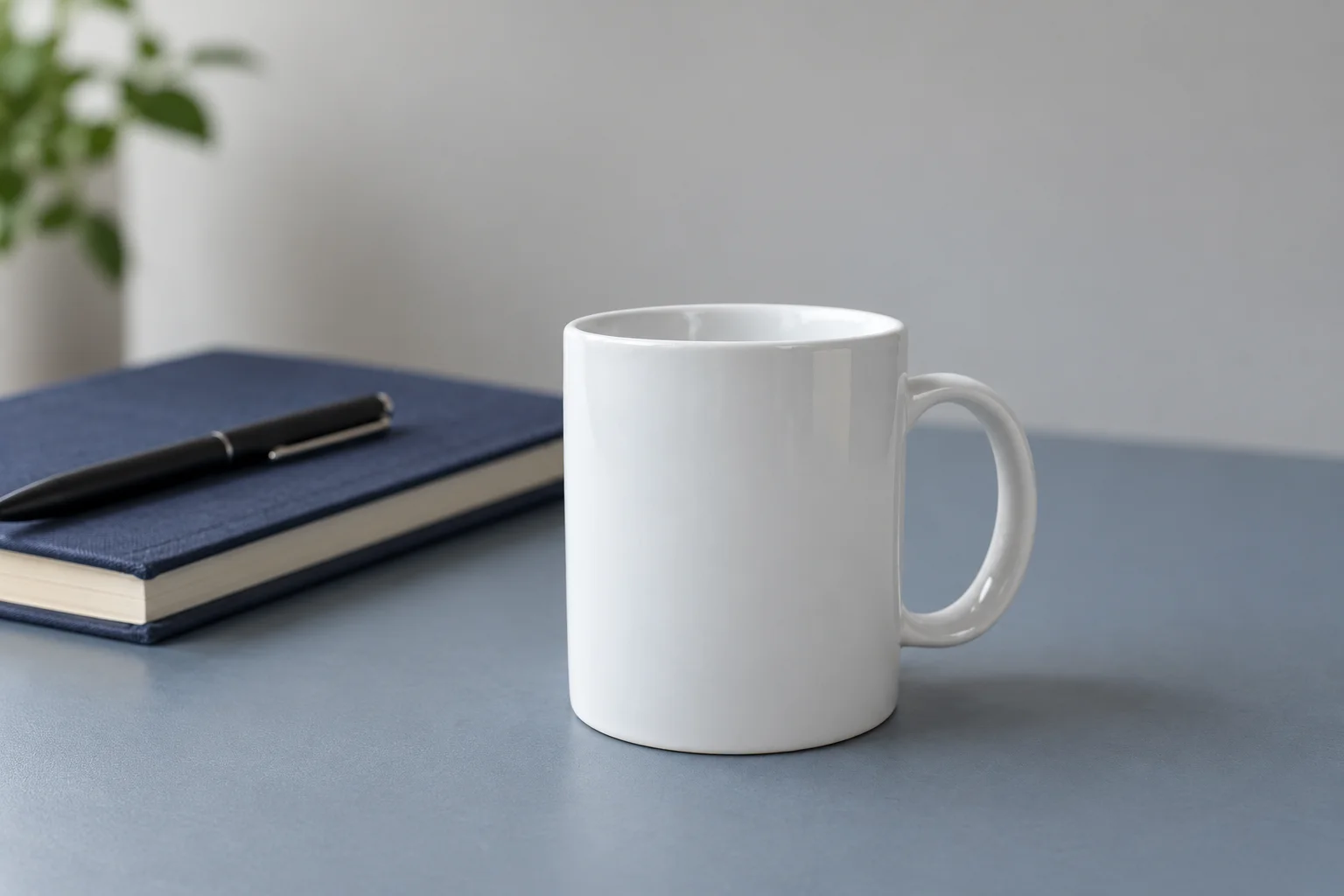
Source image. The exterior glaze and handle will change; the white interior, notebook and desk provide separate checks.
This wording separates the mug from the blue-gray desk. It also explains what should happen at the rim, where the exterior color meets the white interior. If the picture contained two similar mugs, add a location such as “the mug closest to the notebook.” Position and original appearance are more useful here than a vague instruction to change “the main object.”
Choose a color description you can review visually. Muted deep teal and warm terracotta lead to visibly different directions. A hex code can be included as a target, but generated highlights and shadows will have different pixel values. The workflow does not guarantee a color-managed product match or a physical paint or glaze specification.
Preserve the material and lighting in the request
A glossy ceramic surface contains bright reflections and darker areas. Recoloring it should still leave those differences visible. Asking for a uniform teal fill could make the mug appear flatter than you intended.
Ask for glossy ceramic and left-side light so you can check both the finish and the shading. Preserve the handle opening, and keep the desk and nearby objects in place. Review those requirements against the result; the request cannot lock the background pixels.
In the current workspace, sign in, choose an available model with image-input support and use Add from local files to attach the source. A text-only model has no attached photo to edit. Check the supported ratio and resolution, let the upload finish, and read the displayed credit upper limit before submitting.
The image prompt guide covers general prompt structure. For this task, keep the request focused on one surface change. Replacing the background or adding props at the same time would make unwanted changes harder to trace.
An AI object recoloring prompt for two color options
For the teal version, we identified the target and the parts to keep in one request.
Use the attached image as the edit target. Change only the exterior glaze of the single white ceramic mug in the center-right foreground, including its handle, to muted deep teal. Keep the inside of the mug and the thin top rim white. Preserve the glossy ceramic finish, the left-side light, bright reflections, natural shading, mug outline, handle opening, viewpoint, and contact shadow. Keep the blue-gray desk, navy notebook, black pen, plant, background, and their positions unchanged. Keep the entire original frame and composition. Add no objects, text, logo, or watermark. A recoloring study, with no other retouching.
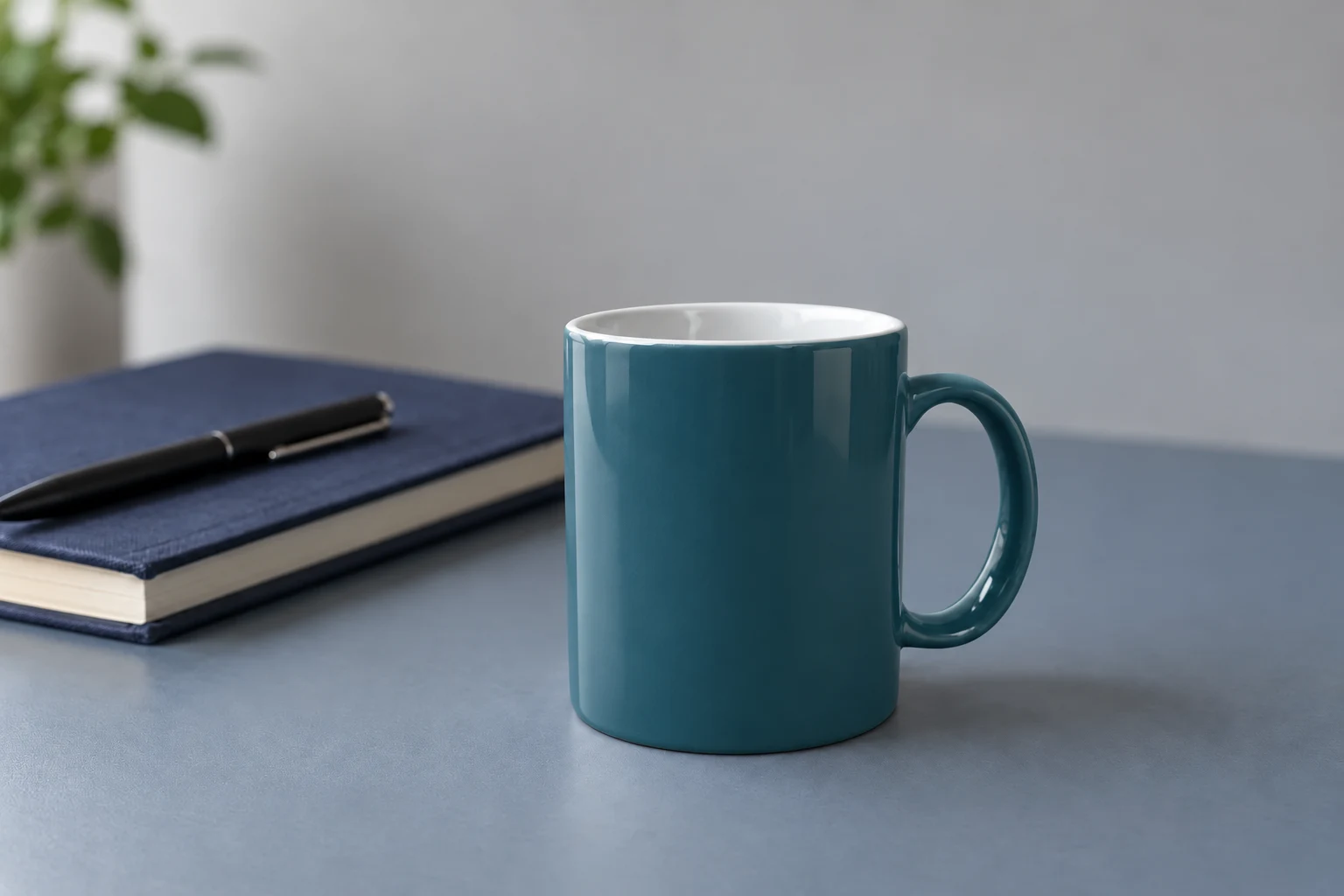
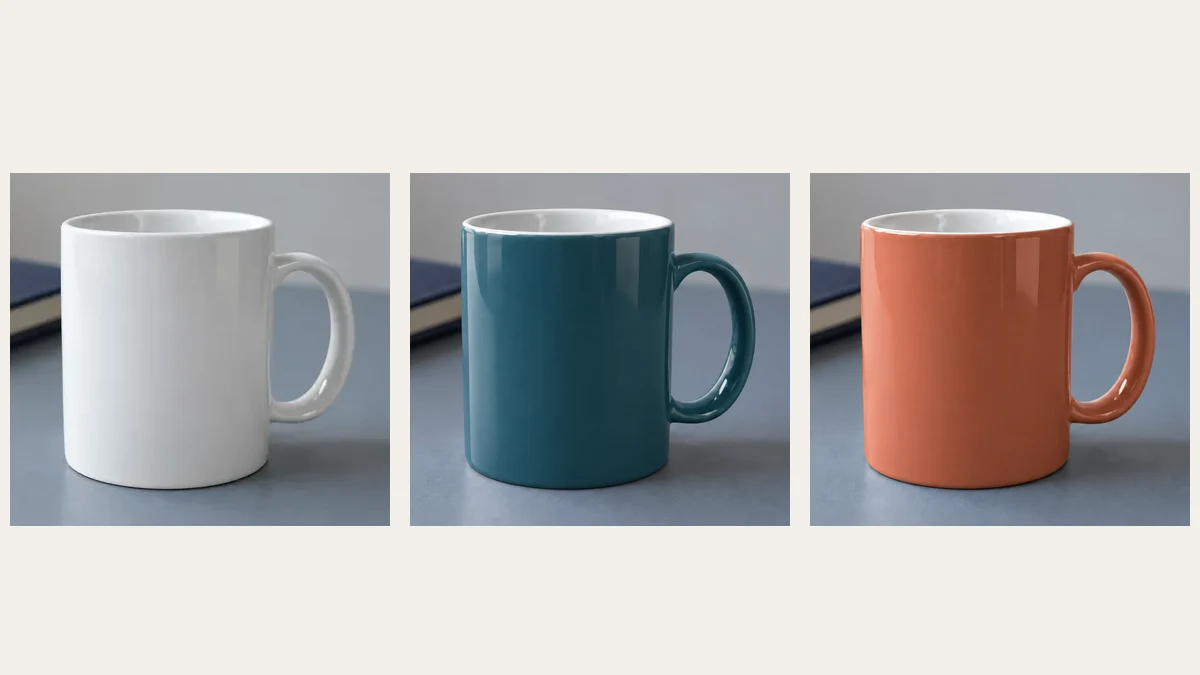
The teal version retains a white interior and visible reflections. Inspect the handle separately from the broad color change.
For the second version, start from the same source image and replace “muted deep teal” with “warm muted terracotta.” Keep the rest of the request the same. Using the teal output as the next source would introduce another editing step, making a comparison with the original less direct.
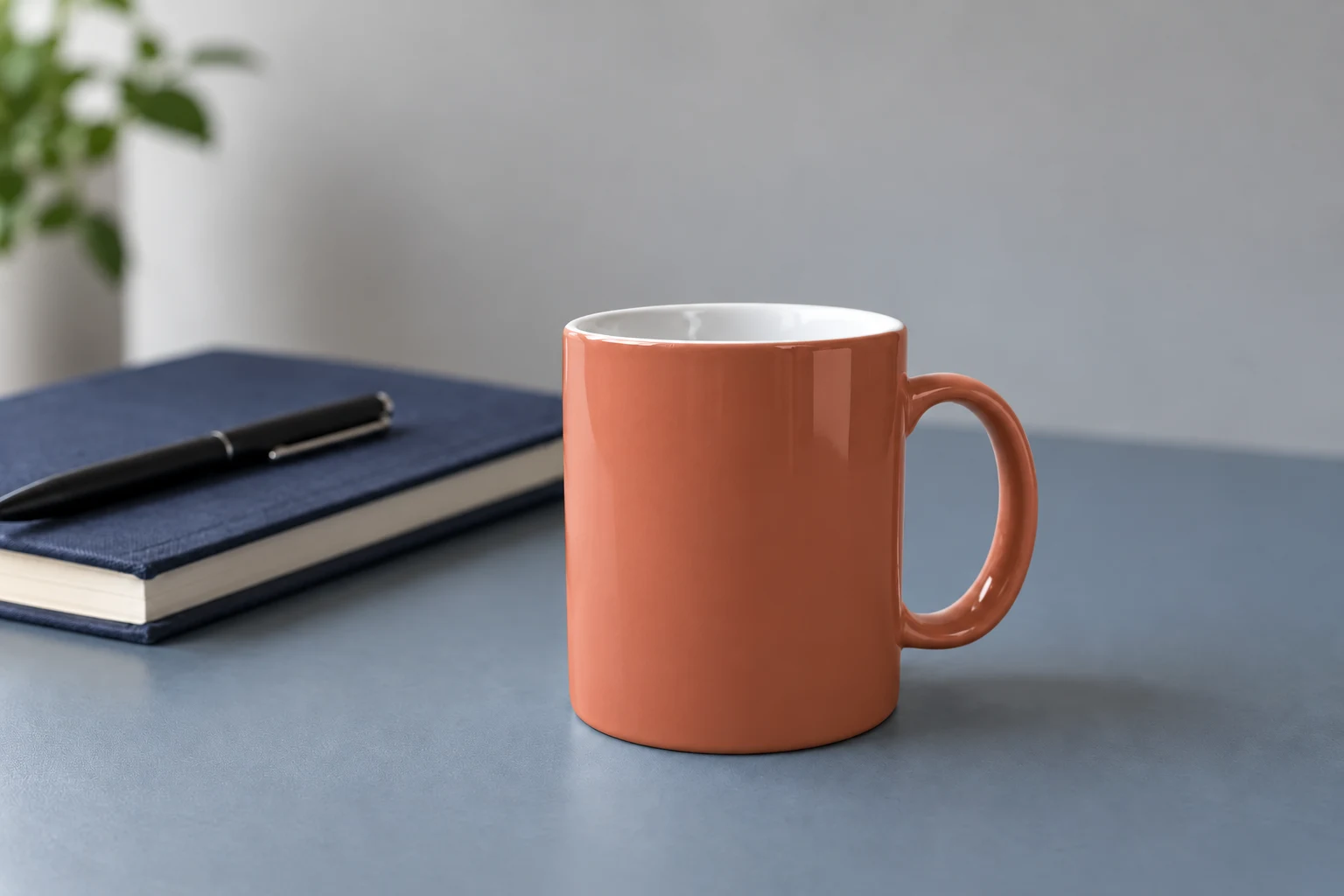
The terracotta direction comes from a separate request using the original desk image.
Both versions show a colored exterior with lighter reflections and darker shading. They are useful for comparing the two color directions. They do not show that an actual mug is available in either glaze.
Check the target object's edges, reflections and openings
Look at the mug body first, then the handle and rim. A color change that reads well at thumbnail size can still contain a broken outline or an unintended color boundary.
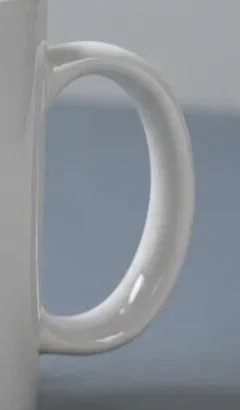
Source
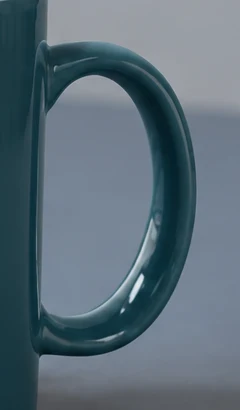
Teal
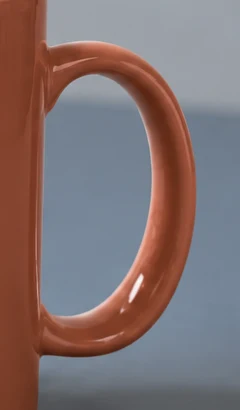
Terracotta
Matching crops of the handle region. The opening remains recognizable, while the highlights and fine contours need their own review.
In these crops, the lower handle highlights differ from the white source, and the inner edge is rendered differently. Part of the visible contrast change comes with the darker color. The images alone do not establish that the geometry is identical. For a product listing, compare those contours with a clear product photograph before approving them.
At the rim, check that color has not spread into the interior. At the base, check that the mug still meets the desk and that the shadow does not look detached. Zoom out again to see whether the new color fits the light across the whole picture.
Check unwanted changes after AI recoloring
The notebook was outside the requested recoloring area. Comparing it gives you a way to look beyond the mug.
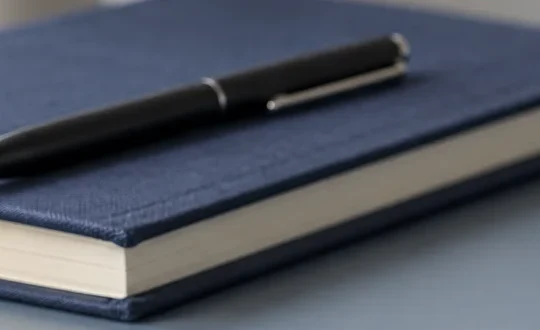
Source
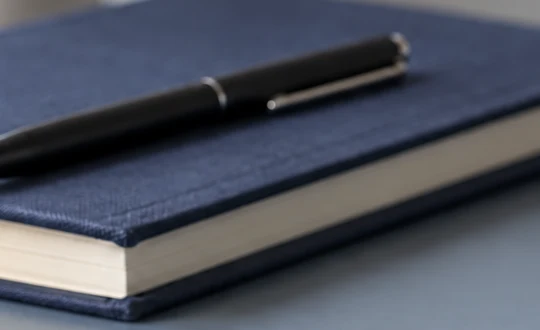
Teal version
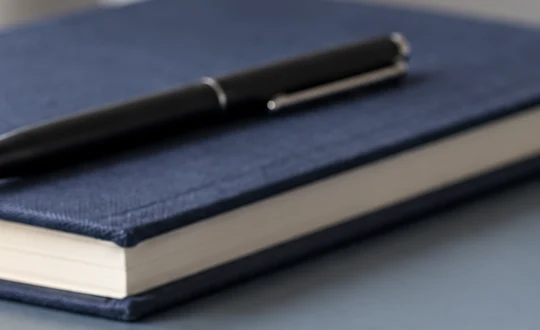
Terracotta version
Crops use the same source coordinates. Compare the cover grain, cream page edge and pen details rather than judging only the mug.
The notebook remains navy, and the pen stays in the same broad arrangement. Look closer at the cover grain and page-edge rendering, though, and the versions are not identical. The untouched part of a request still needs inspection. These web images have also been compressed, so the crops are a visual review aid rather than a pixel-level preservation test.
| Area | What to inspect | If the result fails |
|---|---|---|
| Target surface | Color coverage, reflections and material texture | Name the finish and the exact surface again. |
| Rim and handle | Color spill, outline and the handle opening | State the boundary more clearly; use precise selection tools if needed. |
| Desk and shadow | Surface color and contact with the object | Return to the source and simplify the edit request. |
| Nearby props or lettering | Texture, position, spelling and small details | Restore or protect the region in an external editor. |
Switch tools when the job needs exact boundaries
Reference-image editing is useful for exploring colors, but this workspace does not promise a precise selection mask, a fixed output color value or unchanged pixels outside the object. If an edge, logo or background must stay exact, use an external editor with selections, masks and adjustable color layers. The Photoshop object-color workflow explains that approach. Make the selection there and check its edge at full size.
For another generative attempt, return to the original reference and change one instruction. If the first output colored the interior, explicitly retain the interior and thin rim in white. Review the result before adding another request. Repeated generation can consume credits without solving a boundary that needs manual control.
Open the AI image generator with a clear target and your source image. Keep the original beside the result, and approve the surroundings as carefully as the new color.
Sources and image credits
- Adobe image recoloring overview and Google image generation and editing documentation, reviewed October 27, 2026. Their product-specific features are separate from the controls described here.
- The source desk scene comes from our lifestyle photo guide and is AI-derived from the white mug photograph by KATRIN BOLOVTSOVA, used under the Pexels License. Teal and terracotta images were produced by AI recoloring. The cover combines matching crops; the detail images are cropped and compressed for reading on the web.