
Create an image from a prompt
Describe your subject, setting, composition and light. Choose an available image model and a supported output format.
Describe the subject, setting and style, or add a reference image, then refine each version in one conversation.
Describe your subject, setting, composition and light. Choose an available image model and a supported output format.
Sign in to attach an image you have permission to use. Choose a model with image input and explain what to keep or change.
Compare the result with your brief. Ask for one specific change, review the next version, and download the creation you want to keep.
Examples are creative starting points. Results depend on your prompt, model and settings; an example does not guarantee the same output.
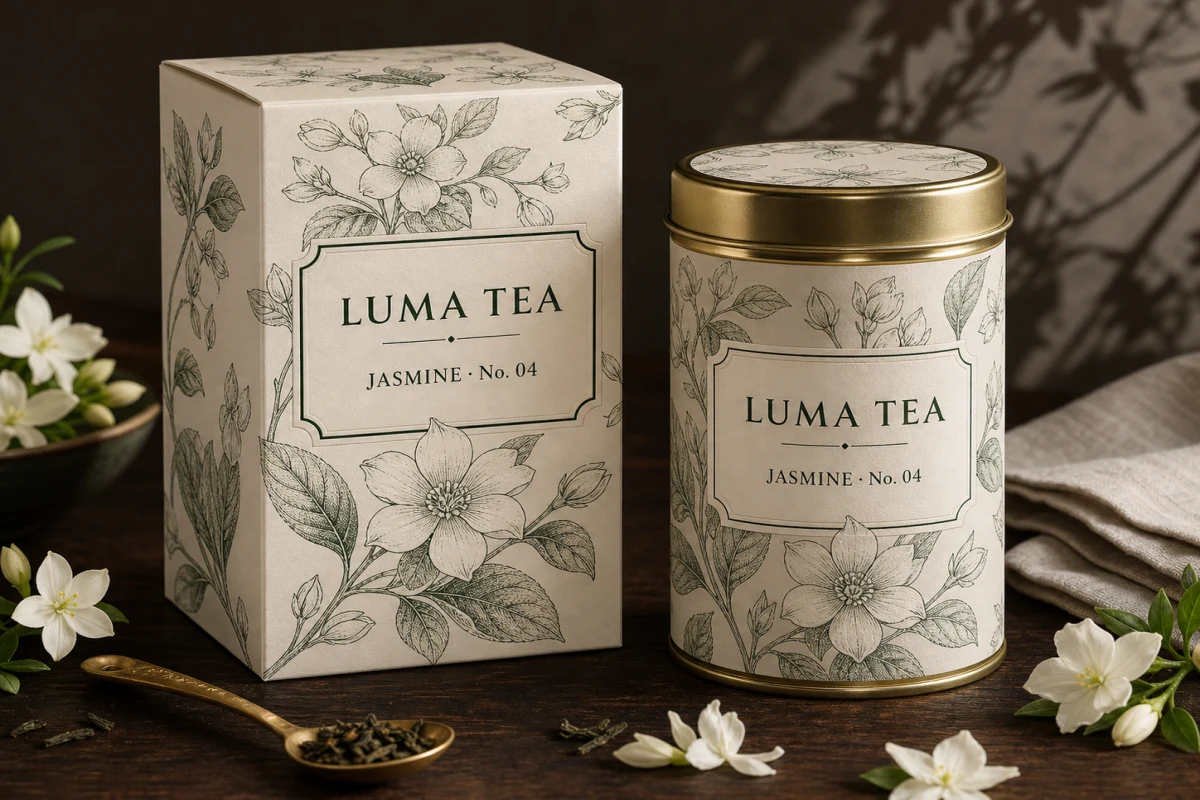
A cream paper tea box and matching cylindrical tin on dark walnut, botanical line engraving, forest-green labels, brass accents and soft studio light.
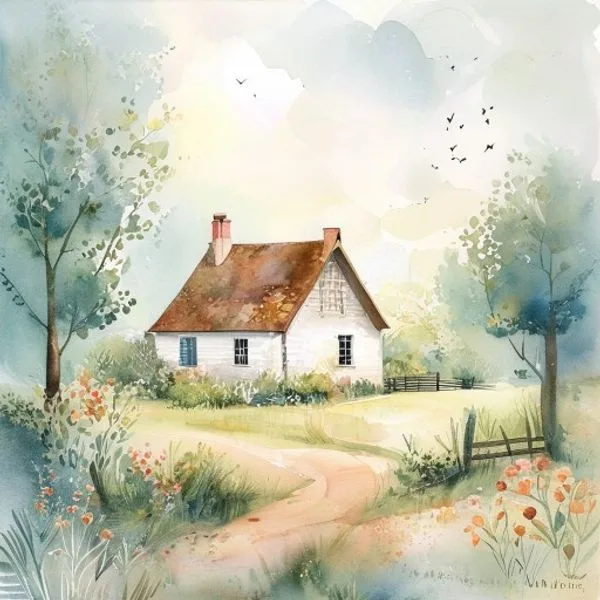
A watercolor storybook cottage in a flowering garden, a winding path, delicate green trees, textured paper and soft morning light.
These are examples from the integrated model catalog. Availability and supported inputs can change; the live model picker shows what you can currently use. Check the maximum credits after changing settings.
Yes, when the selected model supports image input. Sign in to upload a reference you have permission to use. Describe which details to preserve and review the output carefully.
The model picker lists currently available options. Image models offer their supported output sizes or formats; video models offer their supported lengths, resolutions and aspect ratios. Reference support varies by model.
Choose your model and settings, then read the maximum credits shown before submitting. Costs vary by request. Credits are reserved before paid work and settled after reconciliation; unused reservations are released.
Start with a clear subject and setting. For images, describe composition and lighting; for videos, choose one movement and a camera direction. Review each result and refine one change at a time in the same conversation.
Plan your next prompt, add movement to an image, and understand the credits before you submit.