Turn a still image into a short video
Choose a suitable starting image, plan one movement, and give the camera a clear direction.
A still image establishes the scene. Your video prompt can then focus on what changes over time. Decide on one movement you want to see before asking the camera to move as well.
Open the video studio. Select a model that supports image input, and check the settings offered for that model. Image inputs can serve different roles, including an opening frame or a visual reference, depending on the model and mode.
Choose the starting image deliberately
Use an image with a clear subject and enough space for the action you want. Check the parts you expect to remain visible throughout the clip. If the subject is already cropped tightly, consider revising the image before planning a large movement.
Attach the image to your request. Describe whether it should establish the opening shot or guide the visual direction, then use the input controls available for the selected model. Do not assume every video model supports the same combination of references.
Plan one visible action
A short clip gives you a limited amount of time to show an action. Start with something you can describe in one sentence, such as a person taking two steps or a hand lifting into the light.
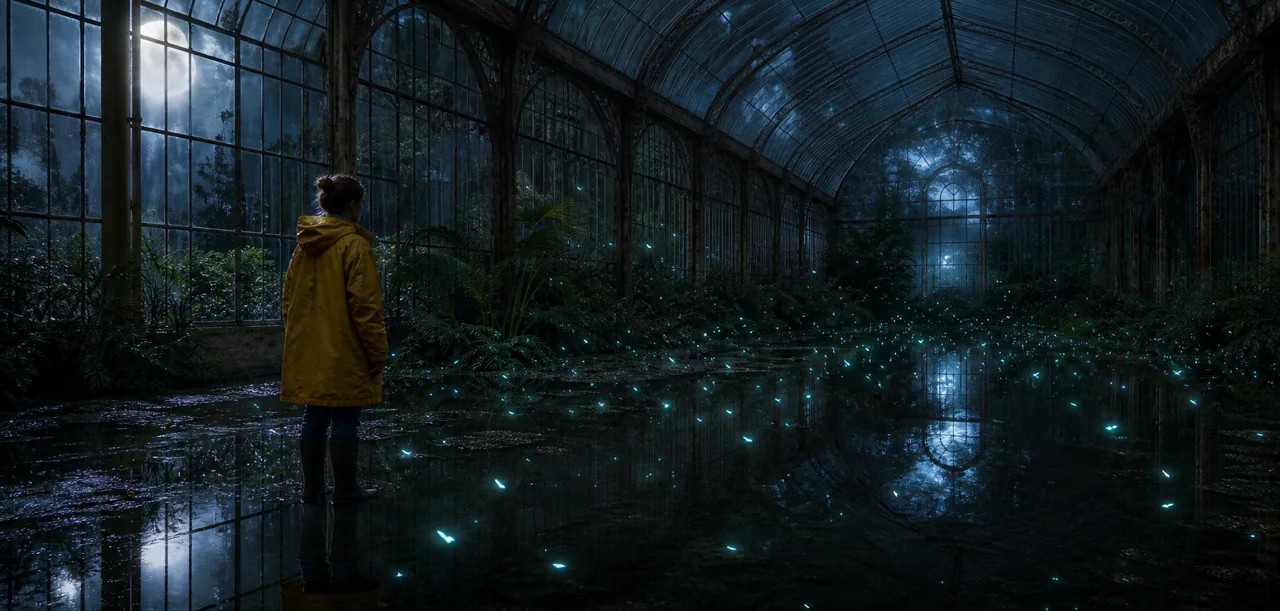
For an imagined greenhouse scene, you could try this motion prompt.
The botanist takes two careful steps through shallow water and raises one hand. Small glowing seeds gather above the palm. The camera moves slowly to the right. Keep the yellow raincoat, greenhouse architecture, and moonlit atmosphere consistent.
This is a creative starting point. Check the generated clip to see which parts the model follows and which need another attempt.
Give the camera a simple direction
A locked camera lets you assess the subject's movement. A slow forward move or a gentle sideward move can add a sense of space. Choose the one that serves the shot you are trying to make.
You do not need to repeat the entire image prompt. Focus on the action, the camera, and the visual details you want to preserve. If a result changes too much at once, simplify the next request.
Review before submitting another version
Check the subject and the first and last moments of the clip. Look for changes to faces, clothing, and the shape of important objects. Review the camera movement separately from the subject's action.
Use the available duration, resolution, and aspect ratio controls to prepare the next request. Changing those settings may change its maximum credit amount. The credit guide explains what to check before submitting again.
Keep the conversation with the request so you can refer back to the prompt and its settings. You can also open the library to find saved creations.